Customize Risk Scores
Adjust vulnerability risk assessments to reflect your asset’s operational impact. DevGuard uses CIA (Confidentiality, Integrity, Availability) requirements to calculate environmental risk scores and automatically create tickets based on severity thresholds.
Prerequisites
Before you begin, ensure you have:
- Access to a DevGuard organization, project, and asset
- Owner or admin role for the asset
- Understanding of your application’s data sensitivity and availability criticality
Set CIA Requirements
CIA requirements define how a vulnerability’s impact should be assessed for your specific asset:
- Confidentiality (C): Data exposure impact (Low/Medium/High)
- Integrity (I): Data modification impact (Low/Medium/High)
- Availability (A): Service downtime impact (Low/Medium/High)
Via Web UI
- Navigate to Organization → Project → Repository
- Click the Settings tab
- Under Requirements, configure:
- Confidentiality: Low, Medium, or High (Default: High)
- Integrity: Low, Medium, or High (Default: High)
- Availability: Low, Medium, or High (Default: High)
- Click Save
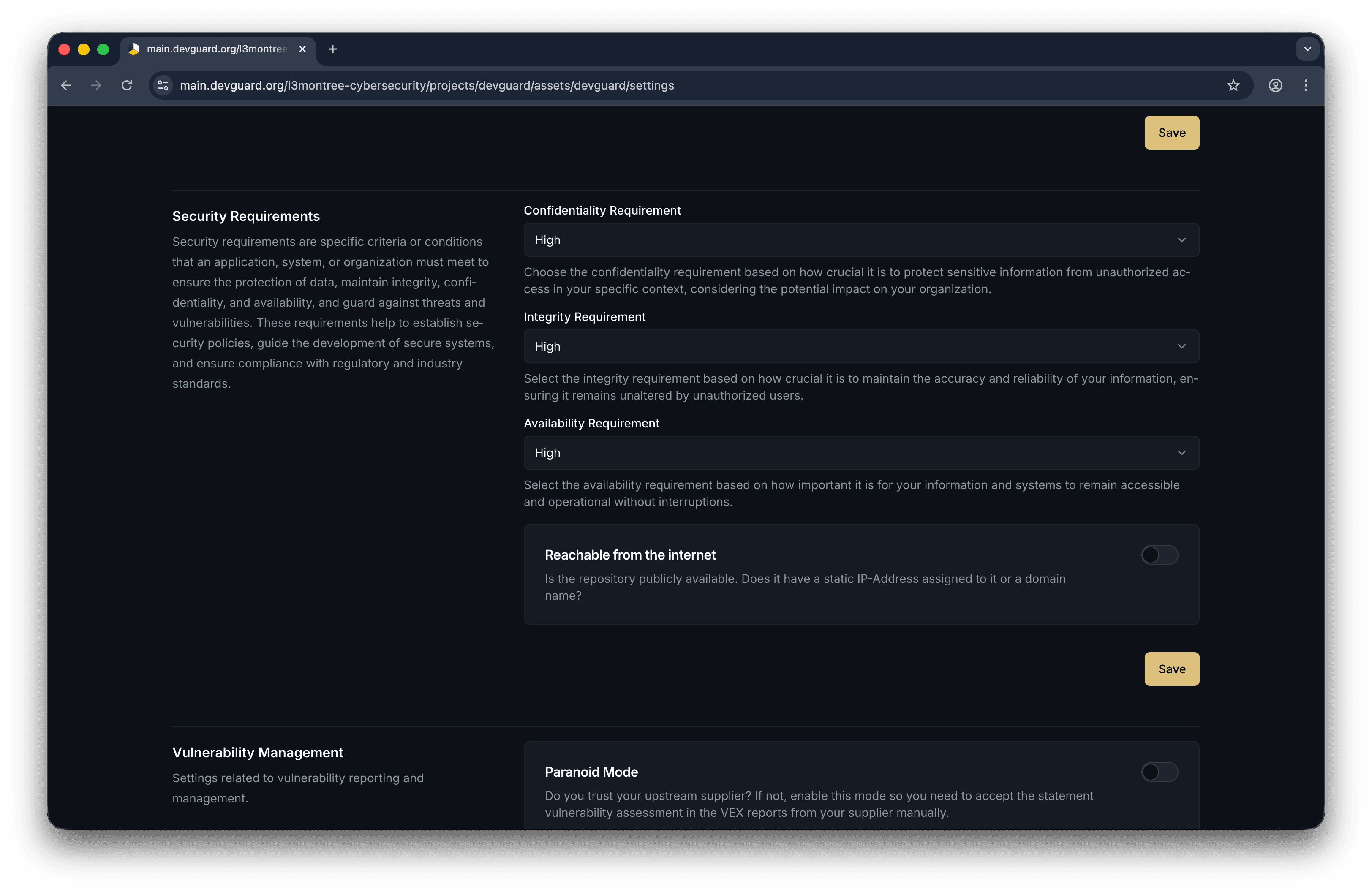
CIA requirements apply to all existing and future vulnerability assessments for this asset.
Configure Automatic Ticket Creation
Create tickets automatically when vulnerabilities exceed your risk thresholds:
Via Web UI
-
In Asset Settings, go to Vulnerability Management
-
Toggle Reporting Range to enable automatic tickets
-
Set CVSS Threshold (0-10, default: 8.0)
- Tickets auto-create for vulnerabilities with CVSS ≥ this value
-
Set Risk Threshold (0-10, default: 8.0)
- Tickets auto-create for vulnerabilities with environmental risk score ≥ this value

- Tickets auto-create for vulnerabilities with environmental risk score ≥ this value
-
Click Save
Changes apply immediately to new vulnerabilities.
Risk Threshold considers your CIA requirements. CVSS Threshold uses the base CVSS score without environmental adjustments.
Set Network Exposure
Inform DevGuard if your asset is reachable from the internet:
Via Web UI

In Asset Settings, toggle Reachable from Internet to contextualize risk assessments.
Configure Vulnerability Auto-Reopen
Automatically reopen accepted vulnerabilities after a period to re-evaluate fixes:

Via Web UI
In Asset Settings under Vulnerability Management, select auto-reopen period: 30, 60, 120, 180, or 360 days.
Accepted vulnerabilities will reopen automatically for reassessment.